

Как удалить автоматически сохраненные логины в мобильном браузере?
To delete automatically saved logins in phone's browser cache, you have to clear saved entries and passwords. To do this, follow the steps below:
Internet Browser (Samsung phones):
- Open Internet Browser,
- At the bottom, left corner click on "
 " -> Settings

- -> Privacy and security
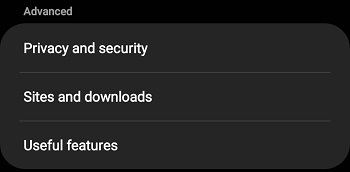
- -> Delete personal data
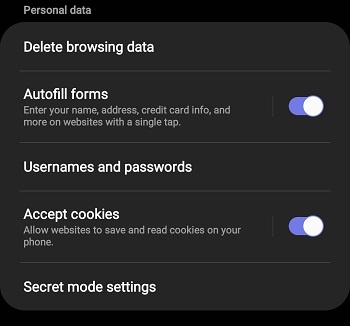
- Put acheck mark on Cache and Passwords (all other check marks have to be removed)
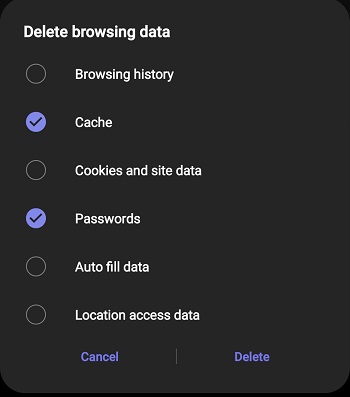
- To confirm the action, press Delete.
Note, if you use Samsung Pass, then the login won't be deleted!
Internet Browser (Sony phones):
- Open Internet Browser,
- At the top left corner click on "
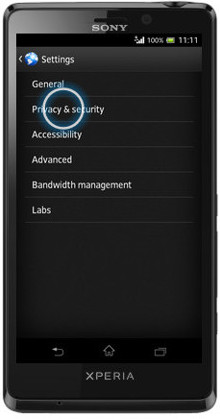
 " -> Settings -> Privacy & security,
 - Put a check mark on Clear saved passwords and Clear autofill data (all other check marks have to be removed),
- To confirm the action, press OK
Internet Browser (Xiaomi phones):
- Open Internet Browser,
- In the lower right corner click on "" -> Settings -> Clear private data,
- In the menu you need to choose function Clear cache -> confirm the action with OK,
- In the menu you need to choose function Clear browsing data -> confirm the action with OK.
Internet Browser (Huawi phones):
- Open Internet Browser
- In the upper right hand corner click on "" -> Settings -> Passwords
- Choose Inbox.lv
- Click on Trash icon
For all phones in Google Chrome browser:
- Open Google Chrome,
- In the upper right corner click on the icon "" -> Settings -> Passwords
- Choose Inbox.lv
- Click on Trash icon
For all phones in Mozilla Firefox browser:
- Open Mozilla Firefox,
- In the upper right corner click on the icon "
" -> Settings -> Logins and passwords -> Saved logins
- Choose Inbox.lv
- Click on Trash icon
 To ensure that passwords and input data are no longer stored, remove the checkmark next to the items:
- Remember form data (Data automatic filling)
- Remember password (Save passwords)
Si vous n'avez pas trouvé votre réponse, contactez-nous
Questions
Как удалить автоматически сохраненные логины в мобильном браузере?